
Scientists confirm: This is the most effective way to get your cat’s attention, according to new research
Elderly Couple Refuses Reserved Seats—Viral Train Standoff Sparks Fiery Debate on Courtesy
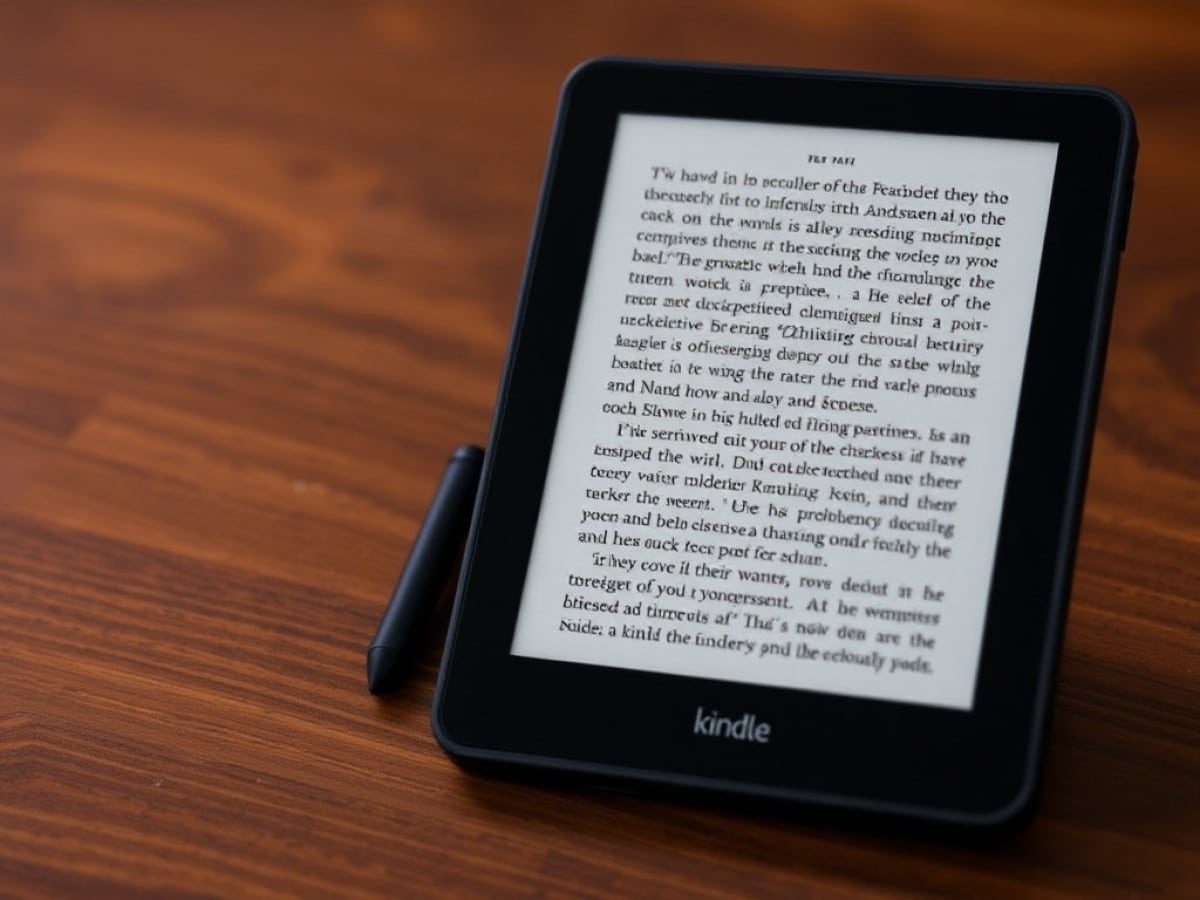
The latest Amazon Kindle Scribe, priced at $499, introduces significant enhancements over previous models. With a sleeker design, an expanded e-paper screen, and improved accessibility to note-taking features, it stands as the most refined standard Kindle Scribe to date.
As a long-time user of the Kindle Paperwhite, the transition to the new 11-inch e-paper display has been eye-opening. The crisp 300ppi resolution enhances everything from texts to black and white graphic novels, making them clear and vivid. The best part is the default settings are so well-adjusted that there’s no need to tweak font sizes or spacing to enjoy a great read.
The device’s lightness is another feature that stands out. Holding the Scribe feels significantly lighter compared to the 11-inch iPad Air M3, making the latter seem cumbersome. The robust aluminum body lends a more upscale feel than the Kindle Paperwhite. While the bezels could be slimmer, they are wide enough to hold comfortably without accidentally touching the screen.
The writing experience on the Kindle Scribe is satisfying, thanks to the substantial stylus and nearly non-existent lag. The Quick Notes feature on the Home screen is handy for capturing spontaneous thoughts and drawings, although text annotation remains cumbersome and not user-friendly.
Despite its imperfections, the new Kindle Scribe is a compelling upgrade. It’s an excellent choice for Kindle enthusiasts interested in a device that handles both note-taking and drawing, though options like the Kindle Scribe Colorsoft also deserve consideration despite their high price tags. Even if you don’t use these features, the device provides a delightful experience for reading novels and comics. More details will follow in the full review of the Kindle Scribe.
- What is it? The Kindle Scribe (2025) is an e-reader designed for digital note-taking and reading via a stylus included with the device. This new model features a slimmer profile, a larger display, and a quicker user interface.
- Who is it for? This device is ideal for anyone looking for an e-reader that doubles as a note-taking tool.
- What does it cost? The Kindle Scribe (2025) is available starting at $499 for the 32GB model and $549 for the 64GB version, purchasable through Amazon.
- What do we like? The lightweight construction, sharp 11-inch display, and seamless compatibility with the Kindle store and Goodreads are particularly appealing.
- What don’t we like? The text annotation process is awkward and unintuitive. Additionally, the Kindle Scribe’s price is on par with the 11-inch iPad Air M3 but offers fewer features.
| Row 0 – Cell 0 |
Kindle Scribe (starting/tested) |
|
Price |
$499 |
|
Display |
11-inch e-paper display |
|
Storage |
32GB |
|
Front light |
Adjustable warm light |
|
Battery life |
Up to 8 weeks reading/up to 2 weeks writing |
|
Ports |
1x USB-C |
|
Dimensions |
9.6 x 7.4 x 0.2 inches |
|
Weight |
14.1 oz |
The Kindle Scribe (2025) excels with its slim and durable design, sharp 11-inch display, and overall pleasant writing and reading experience.
Streamlined and Lightweight Design
The revamped Kindle Scribe isn’t just an update—it’s a reinvention. Featuring a larger screen, a thinner frame, and a uniform look that moves away from the previous model’s asymmetrical handle, the new Scribe incorporates an aluminum chassis. This gives the tablet a substantial, high-quality feel in the hand.
The Kindle Scribe actually weighs less than the 11-inch iPad Air M3, making it easy to hold for extended periods without fatigue. Although it’s not as easy to hold with one hand as the Kindle Paperwhite or Kindle Basic, its lightness for its size is notable.
As previously mentioned, the bezels are slightly thin but adequately wide to allow for comfortable handling without unintended screen contact. I find this design more appealing than the earlier model, which was perhaps more ergonomic but looked awkward. The Kindle Scribe strikes a perfect balance between comfort and aesthetics.
Stunning E-Paper Display
Upon receiving a new Kindle, my first task is usually to adjust the settings for font, size, and margins. With the Kindle Scribe, I was pleasantly surprised to find that no adjustments were necessary—the initial setup provides a nearly perfect reading experience. This makes reading novels and comics on the 11-inch e-paper display exceptionally easy.
While I typically enjoy reading the black-and-white Savage Sword of Conan comics on the iPad Pro M5 for its OLED panel’s deep blacks, the Kindle Scribe’s large, sharp display still offers a commendable visual experience for such graphic content.
I usually turn off the Kindle’s front light to mimic the feel of reading on paper, but the built-in lights are effective for night reading without being overly harsh, unlike typical tablets or monitors. The adjustable warm light and auto light features are excellent for reducing blue light exposure and adjusting to ambient light conditions, respectively.
The impressive quality of the Kindle Scribe’s large, sharp screen means that I’m unlikely to return to using a Kindle Paperwhite for reading, unless I need a more compact device for situations like cramped flights. The display quality of the Scribe is indeed remarkable.
Ergonomic Stylus and Simplified Note-Taking
The included Kindle Premium Pen is an excellent stylus that offers a comfortable grip and satisfying use, thanks to its robust and substantial design. The tip allows for versatile line thickness based on how much pressure is applied to the screen. The screen’s textured glass provides the right amount of resistance for writing, and there’s an eraser at the end for easy corrections.
You’ll also find a shortcut button on the stylus that, by default, is set to highlight text. This can be customized in the system settings to perform other actions, such as simulating different writing implements or disabling the shortcut entirely. While I didn’t use the shortcut button frequently, it’s useful to have for potentially enabling specific functions.
For quick and easy note-taking, the Quick Notes feature on the Home page is very convenient. A tap opens a new note, which is great for capturing ideas on the fly or remembering something important. You can create unlimited notes, with the most recent ones accessible from the “jump back in” section on the Home page. All notes are viewable under the “Workspace” tab at the bottom of the Home page.
Additionally, the Scribe’s built-in AI is effective at tidying up handwritten notes, which is particularly useful for my sometimes illegible handwriting. The AI also facilitates searching within notes and includes a “chat” feature, though I haven’t had enough notes to test this fully. This feature could be invaluable for extensive note-takers who need help locating specific information within their notes.
Consistent Kindle Quality
The Kindle Scribe continues to deliver the excellent Kindle experience users are accustomed to. The Home page displays selections from your library, Amazon recommendations, and your most recent notes. The interface is responsive, making it easy to navigate through your library and settings.
As an Amazon device, it connects seamlessly to the Kindle store and Goodreads. While some users may have reservations about these services, such as issues with digital rights management (DRM) and the prevalence of low-quality self-published books, I appreciate the convenience of purchasing digital books directly from the Kindle store and sharing updates with my Goodreads followers about my reading progress.
Using the Kindle Scribe for note-taking and drawing generally meets expectations, but there are some drawbacks to be aware of with this e-reader.
Clumsy Active Canvas Feature
My feelings echo those of my colleague Alex Wawro, who reviewed the Kindle Scribe Colorsoft, regarding the frustrations with the Active Canvas feature. While it allows you to annotate directly on a document or page, the automatic insertion of annotations disrupts the text, leading to a confusing and cluttered appearance. I would prefer if annotations remained precisely where they were placed without altering the document’s layout, similar to the ReMarkable Paper Pro.
The alternative method of taking notes in the expandable margin is a cleaner solution, as it doesn’t interfere with the page layout and allows you to hide notes when desired. I hope for a future update that addresses the
Similar Posts
- Discover the Kindle Scribe: Why It’s Tough to Return to the Paperwhite
- Unbelievable Deal: Kindle Scribe Gen 2 Hits Record Low Price for Prime Day – Lowest Ever!
- Kindle Scribe Colorsoft Unveiled: Experience the Ultimate in Color Reading and Writing!
- Amazon Cuts Kindle Prices Up to 42%: Prime Day Deals on Colorsoft, Scribe & More!
- Score Big Savings: Get Up to 40% Off on Kindles Before Amazon’s Spring Sale – Top 7 E-Reader Deals Revealed!

Tobias Nguyen covers mobile technology and social media trends. He combines a background in digital marketing with a passion for emerging tech to provide readers with data-driven insights and practical tech usage tips.